BreakPoint
Enable notifications in BreakPoint
Get match notifications on your phone. Set up iPhone, iPad or Android and choose which venues to follow.
Before you start
Notifications help you see when your match starts and follow activity in BreakPoint. Sign in to your account and allow notifications on the phone and browser you use.
Open My profile → Match notifications. On iPhone and iPad, first add BreakPoint to your Home Screen. Follow the steps for your device below.
iPhone and iPad
You need iOS/iPadOS 16.4 or later. Start in Safari.
- Open BreakPoint and sign in.
- Tap Share, the square with an upward arrow. In some versions, Share is inside the browser menu.
- Select Add to Home Screen. If it is missing, open Edit Actions in the share menu.
- Keep the name BreakPoint. If Open as Web App is shown, leave it enabled. Tap Add.
- Open BreakPoint using the new Home Screen icon. Sign in again if needed.
- Open My profile → Match notifications, tap Enable notifications and choose Allow.
- Check that the status says Notifications enabled.
Enable notifications inside the Home Screen app. A regular Safari tab is not enough on iPhone/iPad.
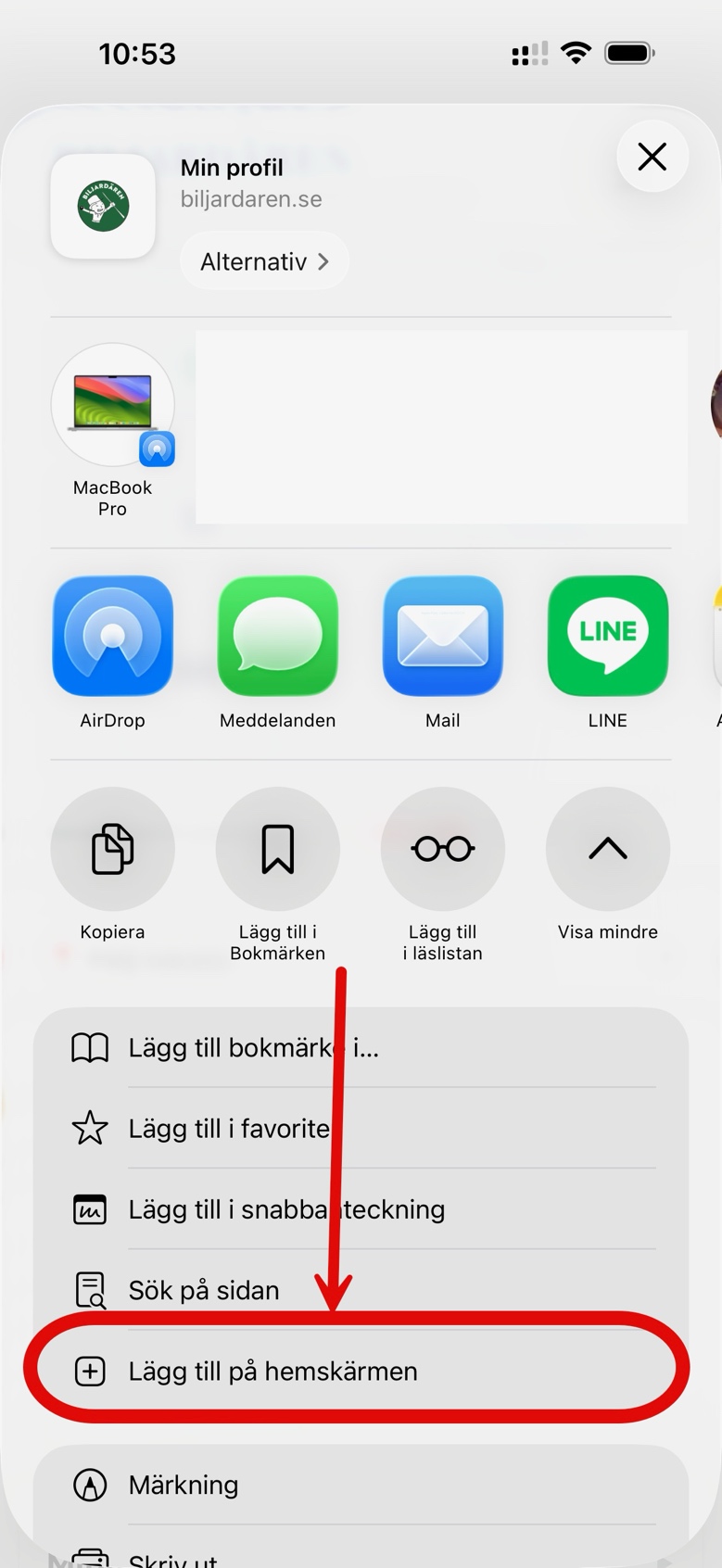
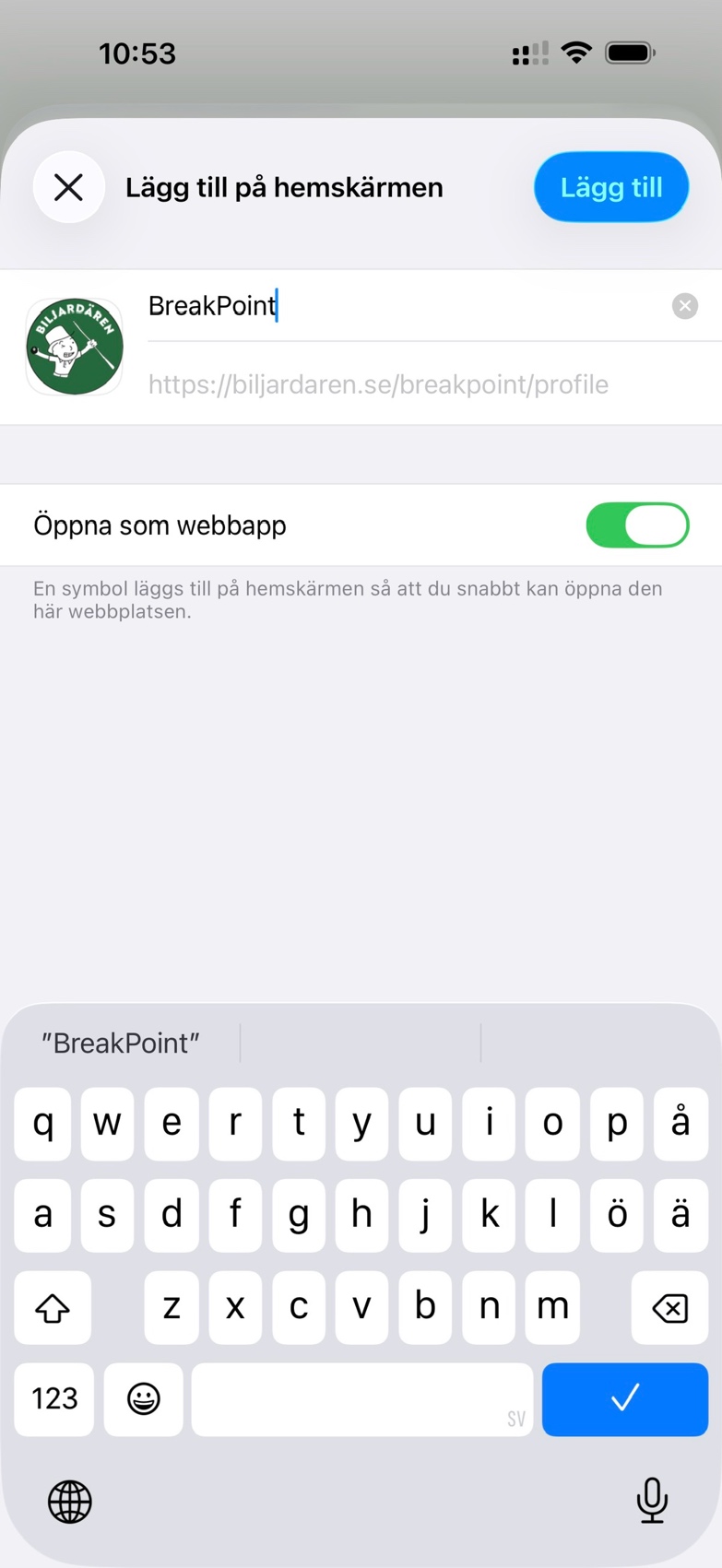
The screenshots are examples. Appearance may vary between system versions.
Android
- Open BreakPoint in Chrome on your phone and sign in.
- Go to My profile → Match notifications.
- Tap Enable notifications and choose Allow when prompted by your browser or phone.
- Check that the status says Notifications enabled.
Chrome on Android normally supports notifications without installing a Home Screen app. For quicker access, use Add to Home screen or Install app in the Chrome menu. Menu names may vary.
Follow venues
Open Follow venues in My profile and tap the bell next to the venues you want to follow. You can then receive notifications when new tournaments are published there. Tap the bell again to stop following a venue.
Test Lokal is used for development and may generate test notifications. Choose the venues where you actually play.
Following a venue and enabling notifications are separate choices. You also need to allow notifications on your phone.
Which notifications can you receive?
Notifications depend on your tournament entries, followed venues and role. Examples include:
- Your match starts and a table is assigned.
- A venue you follow publishes a new tournament.
- Your Swish entry is confirmed or rejected.
- You move up from the waiting list.
Tournament organisers may also receive a notification about an entry requiring manual payment confirmation. See From account to tournament start for entry and payment instructions.
If notifications do not work
- No button on iPhone/iPad: open BreakPoint from its Home Screen icon and check that your system is up to date.
- You previously denied permission: change notification permission in your phone or browser settings. On iPhone/iPad, check Settings → Notifications → BreakPoint. On Android, check Chrome’s site settings for breakpointts.com and the phone’s notification permission for Chrome.
- Enabled but nothing appears: check your internet connection and Focus/Do Not Disturb settings. Android battery-saving settings may also affect delivery.
- New phone or different browser: sign in and enable notifications there too.
- To turn notifications off: use the disable button under Match notifications on that device.
A notification can be delayed. Also follow the tournament page and venue announcements so you do not miss your match.