Step by step
Create a team in My Profile
Create a team, add your teammates and use the team when registering for a team tournament.
Go to My ProfileBefore you start: You and your teammates each need an active BreakPoint account. The person who creates the team automatically becomes its captain and is included as a team member.
The screenshots show an example team, Exempellaget, and example players. Select an image to enlarge it.
1 Find My teams
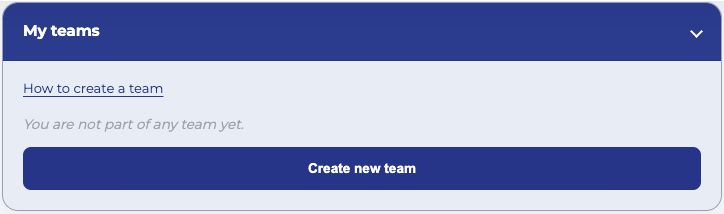
Sign in and open My Profile from the menu. On a phone, first open the menu using the three lines. Scroll down to My teams and use the arrow to expand the card if it is collapsed.
Select Create new team. This button is also available if you already belong to another team.
2 Name and create your team
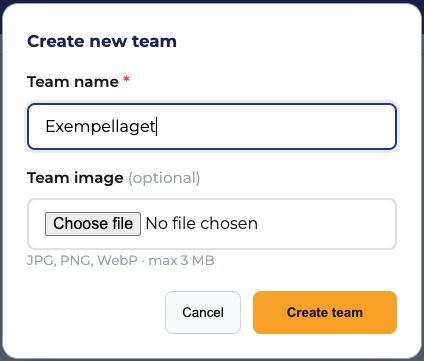
Enter your team's name in Team name. You can also choose a Team image, but this is optional. Then select Create team.
Once saved, the team appears under My teams with you as Captain. You do not need to add yourself again.
3 Add players
- Find the team you created under My teams.
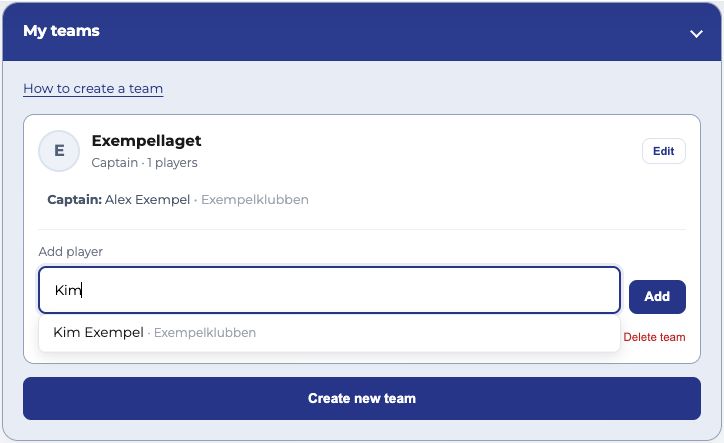
- Enter at least two characters of the player's name or club in the field under Add player.
- Select the correct person from the search results. Check their name and club.
- Select Add. The player is then added to the team.
Select the person from the list first. Typing their name alone is not enough. If the player is missing, check the spelling and that they have an active BreakPoint account.
4 Check your team and register
Check that the correct players appear in your team. Repeat the previous step if you need more players. The number of players must follow the rules of the tournament you want to enter.
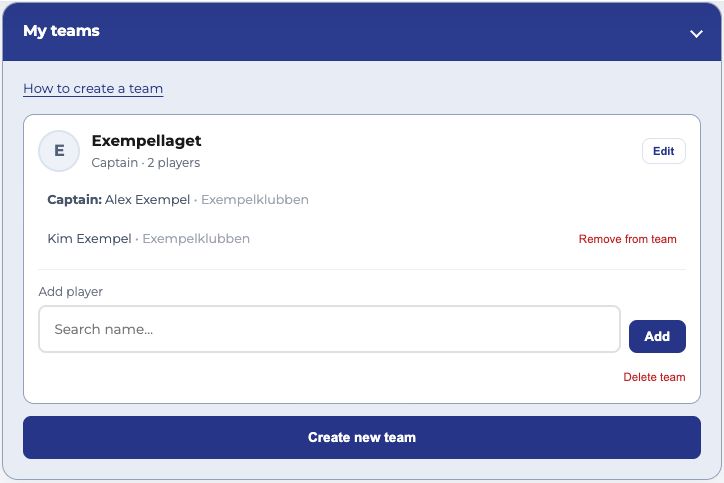
As captain, you can use Edit to change the team name or image, and Remove from team to remove a teammate.
Creating a team does not automatically register it for a tournament. Open the team tournament's public page, go to registration and select your team. Then follow that tournament's registration and payment instructions.